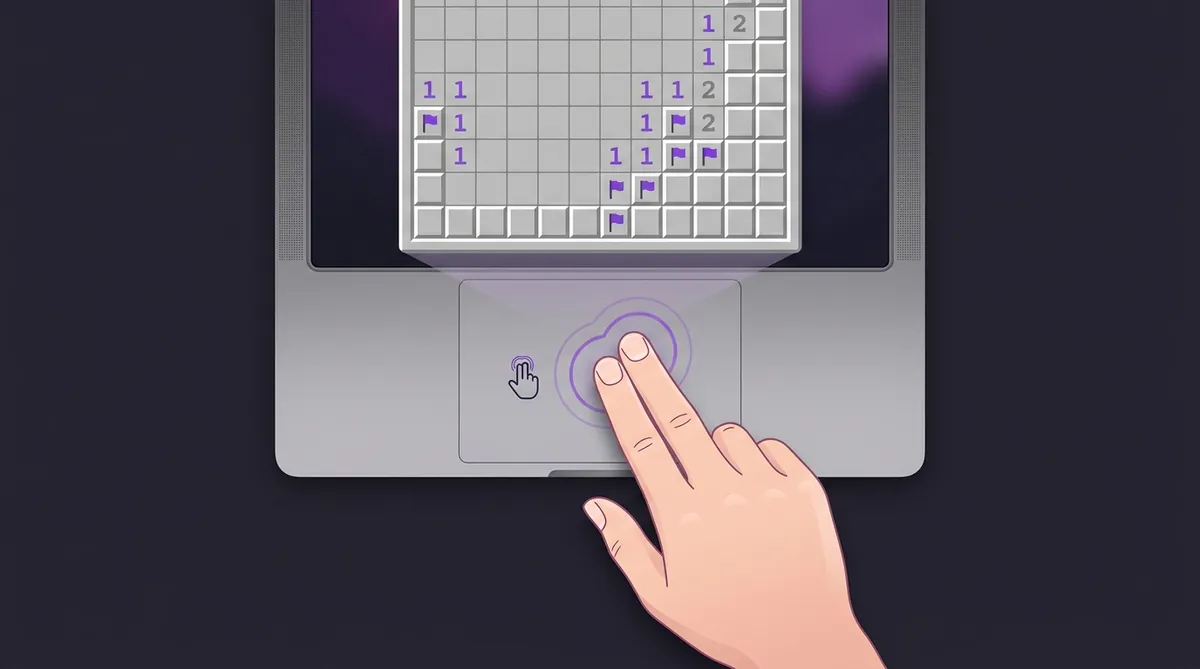
Minesweeper on a Mac: How to Right-Click and Flag Without a Mouse
Macs do have a right-click; on some machines it is simply switched off. On a trackpad, tap with two fingers. On any Mac, hold Control and click. Either one places a flag in Minesweeper, and enabling the two-finger tap takes about thirty seconds in System Settings.
So you just got a Mac. You open up a game of play minesweeper and realize something awkward. There's no right mouse button. How do you flag a mine?
Don't worry. It's way easier than you think. Apple just does things a little differently. And once you learn the trick, you'll be flagging mines just as fast as anyone with a two-button mouse.
Wait, Macs Don't Have Right-Click?
Actually, they do. It's just hidden. Apple's trackpad and Magic Mouse look like they only have one button. But right-click is built in. You just need to turn it on or use a shortcut.
Most new Macs already have it enabled. But if yours doesn't work, we'll fix that in about 30 seconds.
Method 1: Two-Finger Tap (Trackpad)
This is the most popular way to right-click on a MacBook. Just tap the trackpad with two fingers at the same time. That's it. A right-click menu pops up, and in Minesweeper, it places a flag.
If it's not working, here's how to turn it on:
- Click the Apple menu in the top-left corner.
- Go to System Settings (or System Preferences on older Macs).
- Click Trackpad.
- Under "Secondary Click," choose Click or Tap with Two Fingers.
Done. Now go flag some mines.
Method 2: Control + Click
This is the classic Mac shortcut. Hold down the Control key on your keyboard and click. It works exactly like a right-click.
It's simple and works everywhere. But it does tie up one hand on the keyboard. So it can slow you down a little if you're going for speed.
Method 3: Corner Click (Trackpad)
You can set your trackpad so that clicking the bottom-right corner counts as a right-click. It feels more like a real mouse button.
- Open System Settings > Trackpad.
- Under "Secondary Click," choose Click in Bottom Right Corner.
Some people prefer the bottom-left corner instead. You can pick either one.
Method 4: Use an External Mouse
Look, if you play a lot of Minesweeper, a regular mouse with two buttons is the fastest option. Any USB or Bluetooth mouse will work with a Mac. Just plug it in and the right button works automatically.
And if you already have Apple's Magic Mouse, right-click is supported too. Just enable it in System Settings > Mouse > Secondary Click.
Quick Comparison
Do You Even Need to Flag?
Here's a fun thought. What if you just skipped flagging entirely?
Many fast Minesweeper players never flag at all. They just left-click the safe squares and avoid the bombs. It sounds scary, but it actually saves a ton of time. Check out our flagless tips to see how it works.
But if you like flagging, that's totally fine. Flags help you keep track of where the mines are. And they let you use a technique called chording, where you click a number to open all the safe squares around it at once. Our chording tips breaks it all down.
Playing on Other Devices?
If you also play on a tablet, flagging works with a long-press instead of a right-click. We wrote a whole guide on touchscreen play that covers all the details.
And if you haven't tried our daily challenge yet, it's a great way to practice. One new puzzle every day. Same board for everyone. So you can compare your time with players around the world.
You're All Set
Right-clicking on a Mac is simple once you know the trick. Pick the method that feels best, practice a few games, and you'll forget there was ever a problem. Now go create an account and start climbing those rankings.
Part of our complete guide: How to Play Minesweeper on Any Device: PC, Mac, Mobile, and Chromebook.
Try what you just read: Beginner Minesweeper · Intermediate Minesweeper · Expert Minesweeper · No-Guessing mode · Desafío Diario. For technique deep-dives, see the patterns guide, efficiency & 3BV/s guide y Minesweeper FAQ.
Run the numbers with the Minesweeper 3BV calculator, see how good your time is, or read more in the Minesweeper guides.