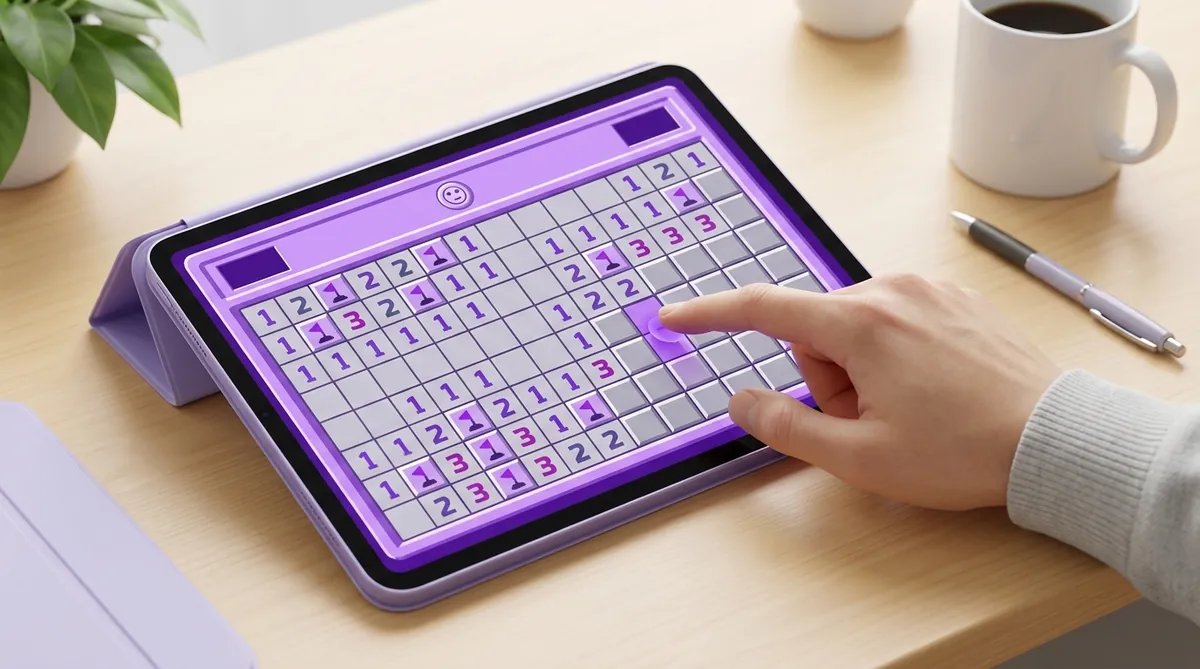
How to Play Google Minesweeper on an iPad or Tablet (Touchscreen Tips)
Can You Play Google Minesweeper on an iPad?
Yes! Google Minesweeper runs right in your browser. Just open Safari or Chrome on your iPad, search "Google Minesweeper," and tap play. It loads fast and works without downloading anything.
But playing with your fingers is not the same as playing with a mouse. You don't have a right-click button. You can't hover over squares. And fat fingers can tap the wrong cell if you're not careful.
So let's fix all of that.
Touchscreen Controls: Tap vs. Long Press
On a computer, you left-click to reveal a square and right-click to place a flag. On a tablet, the controls change a bit.
Google Minesweeper usually has a flag toggle button at the top. Tap it once to switch into flag mode. Then every tap places a flag instead of revealing a square. Tap the toggle again to switch back. It's simple once you get used to it.
Dealing with Fat Finger Problems
Small squares and big fingers don't always get along. Here are some ways to make it easier.
Zoom in. Pinch to zoom on your tablet browser. This makes the squares bigger and way easier to tap. You'll need to scroll around the board, but it's worth it for accuracy.
Use a stylus. If you play a lot, a basic stylus helps. You get the precision of a mouse without the cost. Even a cheap one from the dollar store works fine.
Start with easier boards. Play on Easy or Medium difficulty first. The squares are larger because the board is smaller. Once you're comfortable, move up to Hard.
Screen Rotation and Display Tips
Look, screen orientation matters more than you'd think. For Easy and Medium boards, portrait mode works great. But for Hard or Expert boards, switch to landscape. The wider view lets you see more of the board without scrolling.
And turn off screen rotation lock if you want to switch between the two quickly. Most tablets have this in the control center or quick settings.
Want a Better Tablet Experience?
Google Minesweeper is fun, but it wasn't really built for competitive play. If you want a version that's designed for touchscreens from the ground up, try online minesweeper at Minesweeper.now. The grid is responsive, the controls are smooth, and you can track your times on the player rankings.
You can also check out the beginner guide if you're still learning the basics. It covers everything from number logic to safe opening moves.
Quick Tips for Faster Tablet Play
Learn the numbers. Understanding what each number means saves time. A "1" means one mine touches that square. A "2" means two. Knowing this helps you flag without second-guessing. Our adjacency guide breaks this down in detail.
Skip the flags sometimes. You don't always need to flag every mine. Some fast players skip flagging entirely and just reveal safe squares. This is called no-flag play, and it's actually faster on touchscreens because you don't have to keep switching modes.
Practice patterns. Certain mine setups show up again and again. Once you recognize them, you can clear sections of the board almost instantly. Check out the patterns guide to get started.
So grab your iPad, open your browser, and start sweeping. Touchscreen Minesweeper takes a little getting used to. But once you nail the controls, it feels just as natural as a mouse. Maybe even better.
Part of our complete guide: How to Play Minesweeper on Any Device: PC, Mac, Mobile, and Chromebook.
Try what you just read: Beginner Minesweeper · Intermediate Minesweeper · Expert Minesweeper · No-Guessing mode · Défi Quotidien. For technique deep-dives, see the patterns guide, efficiency & 3BV/s guide et Minesweeper FAQ.
Run the numbers with the Minesweeper 3BV calculator, see how good your time is, or read more in the Minesweeper guides.